Identify Interfaces and Cable Issues
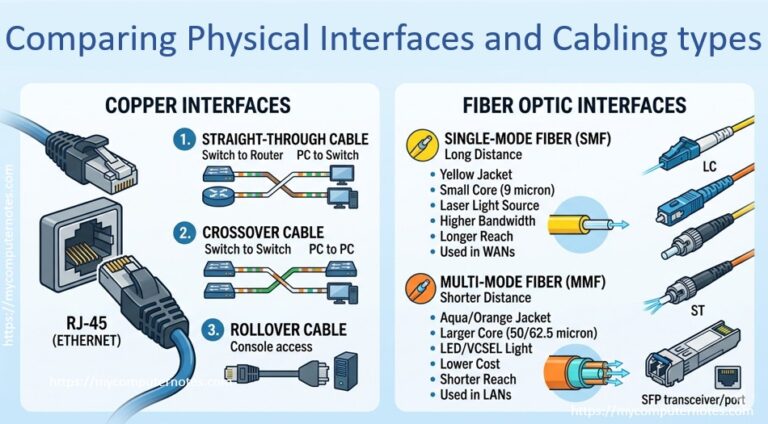
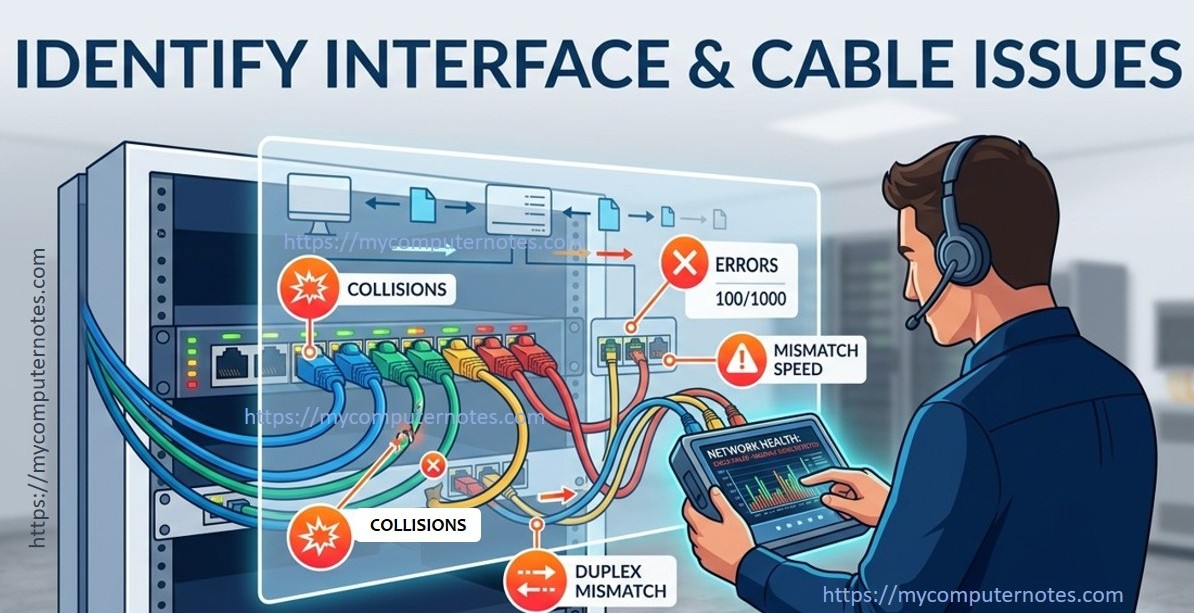
In modern networking environments, stable communication depends heavily on the reliability of interfaces and physical cabling. Even when switches, routers, and servers are properly configured, small faults at the physical or data-link layer can create major connectivity issues across the network.
Most of the common issues such as collisions, interface errors, duplex mismatches, speed mismatches, and damaged cables often lead to slow performance, packet loss, intermittent disconnections, and unstable communication.
Below is a detailed breakdown of the most common interface and cable problems, their symptoms, causes, identification methods, and removal techniques.
Collision
A collision in networking occurs when two or more devices attempt to transmit data over the same communication channel at the same time. As a result, the transmitted data signals interfere with each other, causing corruption of the data packets.
Collisions were very common in older Ethernet networks that used hubs and half-duplex communication. Since all connected devices shared the same transmission medium, only one device could send data at a time. If multiple devices transmitted simultaneously, a collision occurred, and the devices had to stop transmitting and resend the data after waiting for a random time interval.
Common causes of collisions include:
- Half-duplex communication can cause collisions because devices cannot send and receive data simultaneously on the same link.
- Network congestion increases the chance of collisions when multiple devices try to transmit data at the same time.
- Using hubs instead of switches causes collisions because all connected devices share the same communication channel.
- A duplex mismatch can create collisions when one device operates in half-duplex mode while the other uses full-duplex mode.
How Collisions Are Detected
Collisions can be detected by monitoring interface statistics and observing abnormal network behavior. Network administrators usually identify collisions through switch, router, or network interface counters.
Common methods used to detect collisions include
- Check interface statistics using Cisco IOS commands such as “show interface” or “show interface statistics” to view collision counters.
- Monitor the collision count on network devices because increasing collision values indicate transmission conflicts on the network.
- Observe network performance issues such as slow communication, packet retransmissions, or delayed responses, which may suggest excessive collisions.
- Look for late collisions in interface statistics, as they often indicate duplex mismatch or improper network configuration.
- Use network monitoring tools like Wireshark, SolarWinds, or PRTG to analyze traffic behavior and detect communication problems caused by collisions.
- Verify duplex settings on both connected devices because mismatched duplex configurations are a common reason for repeated collisions.
- Check whether hubs are being used in the network, since shared-media hub environments are more likely to experience collisions than switched networks.
Errors
In networking, errors refer to problems that occur when data packets are transmitted or received incorrectly due to issues at the physical or data-link layer. These errors indicate that the information sent from one device did not reach the destination in a clean or usable form.
Errors usually happen when data becomes corrupted, lost, or incomplete during transmission. Even though the network link may still appear active, errors can silently degrade performance and cause instability in communication.
Common types of interface errors include the following:
- CRC errors
- Input errors
- Frame errors
- Output errors
Each of these represents a different kind of transmission problem, but all of them point to a disruption in normal data flow.
Common Causes of Errors
- Faulty cables can cause errors because damaged or low-quality wiring disrupts proper data transmission.
- Poor cable termination leads to errors when connectors are not properly crimped or wired, resulting in signal loss or corruption.
- Electromagnetic interference causes errors by disturbing the signal as it travels through the cable, especially near electrical devices.
- Hardware malfunction can create errors when network interface cards or switch ports fail to process data correctly.
- Incorrect interface configurations lead to errors when speed or duplex settings do not match between connected devices.
- Network congestion can result in errors because overloaded links may drop or corrupt packets during heavy traffic.
- Incompatible device settings cause errors when connected equipment cannot properly negotiate communication parameters.
How Errors are Detected
- Errors are detected by checking interface statistics on routers and switches, where counters like CRC errors, input errors, and frame errors indicate transmission problems.
- Errors are identified when these interface counters increase over time, showing that packets are being corrupted or dropped during communication.
- Errors can be detected by observing network performance issues such as slow data transfer, packet loss, and unstable connections.
- Errors are found using command-line tools like
show interfaces,ifconfig, orethtoolthat display detailed interface error information. - Errors are analyzed using network monitoring tools such as Wireshark, PRTG, or SolarWinds to inspect corrupted packets and retransmissions.
- Errors are detected through physical inspection of cables, connectors, and switch ports to identify visible damage or poor connections.
Duplex Mismatch
Duplex mismatch is one of the most common Layer 1 and Layer 2 network problems in Ethernet networks. It occurs when two connected devices operate with different duplex settings. For example, one device may use full-duplex while the other uses half-duplex. This mismatch creates communication issues that reduce network performance and increase packet errors.
Understanding Duplex Modes
Ethernet communication works in two duplex modes:
- Half-Duplex: In half-duplex mode, a device can either send or receive data at a time, but not both simultaneously. Older Ethernet hubs commonly use this mode. Because devices share the same communication medium, collisions can occur.
- Full-Duplex: In full-duplex mode, devices can transmit and receive data simultaneously. Modern switches typically use full-duplex communication, which eliminates collisions and improves efficiency.
How Duplex Mismatch Happens
A duplex mismatch usually occurs due to incorrect manual configuration or failed auto-negotiation between devices.
Let us understand with the following example.
- The switch port is manually configured to 100 Mbps Full-Duplex
- PC network card is set to auto-negotiation.
In many cases, the PC may fall back to half-duplex, while the switch remains at full-duplex. As a result, both devices communicate using different duplex settings.
Symptoms of Duplex Mismatch
A network affected by duplex mismatch may still appear connected, but performance becomes unstable. Common symptoms include:
- Slow file transfers
- Intermittent connectivity
- High latency
- CRC errors
- Late collisions
- Packet drops
- Poor VoIP or video call quality
Users often report that “the internet is slow” even though the link status is up.
Methods to Detect Duplex Mismatch
Network administrators can identify duplex mismatches using different Cisco IOS commands.
1. Check Interface Statistics
Network devices maintain interface counters that reveal errors caused by duplex mismatches.
Cisco Command
show interfaces Fa 0/1Example Output
FastEthernet0/1 is up, line protocol is up
  Full-duplex, 100Mb/s
  120 input errors
  95 CRC
  40 late collisions
Large numbers of CRC errors, late collisions, and input errors strongly indicate that there is a duplex mismatch.
2. Compare Duplex Settings on Both Devices
Check the duplex mode on both ends of the connection.
Example
Switch Port:
Full-duplex, 100Mb/sConnected PC or Router:
Half-duplex, 100Mb/sIf the duplex modes are different, a mismatch exists.
3. Observe Network Performance Symptoms
Duplex mismatches often cause the following:
- Slow file transfers
- Intermittent connectivity
- High latency
- Packet loss
- Poor VoIP or video quality
The network may appear connected but perform very poorly.
Best Practice to Avoid Duplex Mismatch
- Use auto-negotiation on both devices
- If manual configuration is necessary, configure both ends identically
- Regularly monitor interface error counters
Speed Mismatch
A speed mismatch occurs when two connected network devices operate at different communication speeds. For example, one device may operate at 100 Mbps while the other operates at 1 Gbps.
This mismatch can reduce network performance, create unstable connections, and cause communication problems between devices.
Causes of Speed Mismatch
- Incorrect Manual Configuration: One device may be manually configured to a fixed speed while the other device uses auto-negotiation. For example, a switch port may be configured to 100 Mbps while the connected PC is configured to 1 Gbps.
- Auto-Negotiation Failure: Modern Ethernet devices use auto-negotiation to determine the best speed automatically. If the negotiation process fails: Devices may fall back to lower speeds or one side may select an incorrect speed
- Unsupported Hardware: Older devices may not support higher speeds, which can lead to speed mismatch problems when they are connected to newer devices.
- Poor Quality or Incorrect Cables: Different cables support different speeds. A Cat5 cable may not reliably support Gigabit Ethernet. Damaged cables can force interfaces to downgrade speed.
- Faulty Network Interface Cards (NICs): Defective NICs may fail to negotiate proper speed settings.
How to Identify Speed Mismatch
1. Check Interface Speed
On network devices, administrators can check interface settings.
Cisco Command
show interfacesExample Output
FastEthernet0/1 is up
  Full-duplex, 100Mb/s
If the network expects Gigabit speed but shows 100 Mbps, a mismatch or cable issue may exist.
2. Compare Both Ends of the Connection
Verify speed settings on both connected devices.
Example
Switch:
Speed: 100Mb/sServer NIC:
Speed: 1000Mb/sDifferent speeds indicate a mismatch.
3. Use Interface Status Commands
Commands for Cisco IOS
show interfaces statusCommand for Linux
ethtool eth0Windows PowerShell Command
Get-NetAdapterThese commands display:
- Current speed
- Duplex mode
- Link status
How to Fix Speed Mismatch
- Enable Auto-Negotiation: Allow both devices to negotiate speed automatically.
- Configure Matching Speeds: If manual configuration is required, set identical speeds on both ends.
- Replace Faulty Cables: Use proper Ethernet cables like Cat5e or Cat6 for Gigabit Ethernet.
- Update Hardware: Replace outdated NICs or switches that do not support required speeds.
- Check Interface Errors: Look for CRC errors, Input/output drops, link flapping, etc.
Conclusion
Interface and cable issues are among the most common causes of network performance problems. Collisions, interface errors, duplex mismatches, and speed mismatches can disrupt communication and reduce productivity.
By understanding these issues and using proper troubleshooting methods, network administrators can quickly identify and resolve problems before they affect business operations. Regular monitoring, proper configuration, and quality hardware are essential for maintaining a stable and efficient network infrastructure.
Effective troubleshooting not only improves network reliability but also enhances overall system performance and user experience.