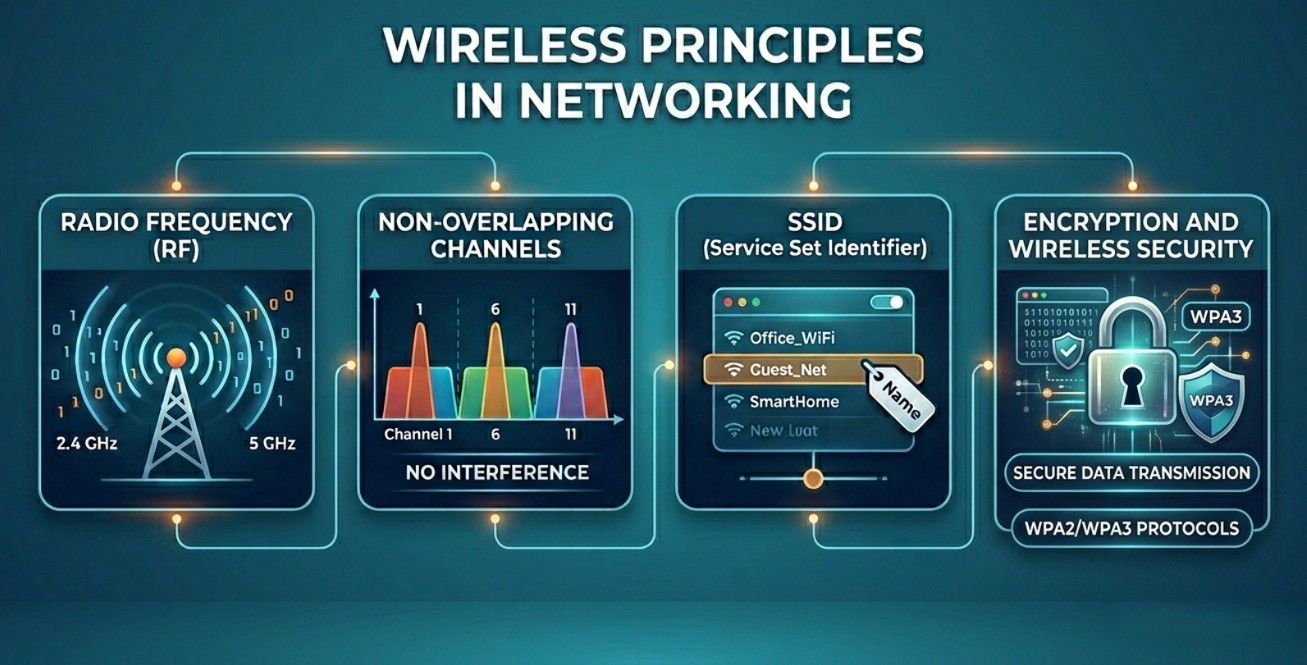
Wireless Principles in Networking
Wireless networking is built on a set of foundational principles that allow data to travel invisibly through the air. Instead of using physical copper cables or fiber optics, wireless networks rely on radio frequency (RF) signals to communicate.
Here is an overview of the core principles that govern how wireless networks operate:
1. The Electromagnetic Spectrum and RF
At its heart, Wi-Fi is simply data encoded into radio waves. These waves are part of the electromagnetic spectrum, the same spectrum that includes visible light, X-rays, and AM/FM radio.
- Frequency: Measured in Hertz (Hz), frequency refers to how many wave cycles pass a given point per second.
- Bands: Wi-Fi primarily uses three unlicensed frequency bands:
- 2.4 GHz: Operates at a lower frequency, meaning the waves are longer. This allows them to travel farther and penetrate solid objects (like walls) easily, but data speeds are slower.
- 5 GHz: Higher frequency with shorter waves. It provides much faster data speeds but has shorter range and struggles to pass through thick walls.
- 6 GHz: The newest frontier (Wi-Fi 6E and Wi-Fi 7). It offers massive bandwidth and virtually zero interference but has the shortest range of all.
2. RF Behaviors (Signal Propagation)
When an Access Point (AP) transmits a wireless signal, that signal rarely travels in a perfectly clean, straight line to your device. As RF waves encounter the physical world, they behave in predictable ways that affect network performance:
- Absorption: When a signal passes through material (like drywall, wood, or concrete) and loses strength. Concrete and brick are notorious for absorbing and killing Wi-Fi signals.
- Reflection: When a signal bounces off a smooth, metallic surface. This can cause Multipath Interference, where the same signal arrives at a device at slightly different times, confusing the receiver.
- Refraction: The bending of an RF wave as it passes through mediums of different densities (like glass or water).
- Scattering: When a signal hits an uneven surface (like rough rock or a tree’s leaves) and splinters into multiple directions, drastically reducing its quality.
- Attenuation: The natural weakening of a signal as it travels farther away from the transmitter.
3. Half-Duplex Communication
One of the most critical principles of wireless networking is that Wi-Fi is a half-duplex medium.
Unlike wired Ethernet, which is full-duplex (devices can talk and listen at the exact same time over different wires), wireless devices share the exact same airspace.
Because of this:
- Only one device can transmit on a specific channel at any given millisecond.
- If two devices talk at the same time, their radio waves collide, corrupting the data.
- To manage this, Wi-Fi uses a protocol called CSMA/CA (Carrier Sense Multiple Access with Collision Avoidance). Before a device talks, it “listens” to the air. If the channel is busy, it waits for a random amount of time before trying again.
4. Modulation and Coding
How do you turn a physical radio wave into a digital file or a streaming video? The answer is Modulation.
Modulation is the process of altering a radio wave’s characteristics—specifically its amplitude (height), frequency (timing), or phase (shift in the wave cycle)—to represent binary 1s and 0s.
- The Rule of Signal Quality: If a device is close to an Access Point and has a crystal-clear signal, it uses complex modulation techniques (like 1024-QAM) to pack a massive amount of data into every single wave.
- The Fallback: As a device moves farther away and the signal degrades, the hardware automatically drops down to simpler, slower modulation techniques to ensure the data still arrives accurately, even if it takes longer. This is why your internet speed slows down when you walk to the edge of your backyard.
Non-overlapping Wi-fi Channels
In wireless networking, the concept of non-overlapping channels is critical to building a stable, high-performance Wi-Fi network. Because Wi-Fi relies on radio waves moving through the open air, devices must have distinct “lanes” to travel in. If those lanes bleed into one another, data packets collide, leading to dropped connections and sluggish speeds.
Wi-Fi Channel
A wireless frequency band (like 2.4 GHz or 5 GHz) is just a large block of radio spectrum. To organize traffic, this block is chopped up into smaller, individual slices called channels. Think of the frequency band as a massive highway and channels as the painted lanes.
The 2.4 GHz Band: The Overlapping Nightmare
The 2.4 GHz band is roughly 100 MHz wide and is divided into 11 channels (in the US). However, there is a catch:
- Each channel lane is 20 to 22 MHz wide.
- The center frequencies of the channels are spaced only 5 MHz apart.
Because the lanes are wider than the space between them, they drastically overlap. If an Access Point (AP) is broadcasting on Channel 2, it will bleed heavily into Channels 1, 3, 4, and 5. This causes Adjacent-Channel Interference (ACI), which acts like heavy background static that corrupts data.
To avoid this interference, network engineers only use channels that have enough physical space between them so they don’t bleed into each other. In the 2.4 GHz spectrum, there are only three non-overlapping channels:
- Channel 1
- Channel 6
- Channel 11
The 5 GHz and 6 GHz Bands: Plenty of Room
As technology evolved, the industry opened up higher frequency bands to completely solve the overcrowding issue seen in 2.4 GHz.
5 GHz Band
The 5 GHz spectrum is much larger. It offers up to 25 separate, naturally non-overlapping 20 MHz channels.
Because there are so many clean lanes, network planning is much easier. It also allows for channel bonding—combining two 20 MHz channels into a single 40 MHz, 80 MHz, or even 160 MHz “super-lane” to transmit data much faster without immediately running out of space or hitting a neighbor’s channel.
6 GHz Band (Wi-Fi 6E & Wi-Fi 7)
The 6 GHz band adds a massive amount of new, pristine wireless airspace. It provides up to 14 non-overlapping 80 MHz channels or 7 non-overlapping 160 MHz channels. It is designed for ultra-high-speed, low-latency applications with zero interference from older legacy devices.
What Happens If Channels Overlap?
When wireless channels are poorly configured, two types of interference occur:
- Co-Channel Interference (CCI): This happens when neighboring access points are configured to use the exact same channel (e.g., two routers right next to each other both on Channel 6). Because Wi-Fi is half-duplex (only one device can talk at a time), the routers and their connected devices will politely wait for each other to finish talking. It doesn’t break the connection, but it slows down the entire network because everyone is sharing the same lane.
- Adjacent-Channel Interference (ACI): This happens when devices are on overlapping channels (e.g., one router on Channel 1 and another on Channel 2). Because they don’t match up exactly, they can’t understand each other’s signals to coordinate talking times. Instead, they just perceive each other as chaotic, unfixable electronic noise, causing heavy packet loss and dropped connections.
SSID (Service Set Identifier)
An SSID, which stands for Service Set Identifier, is the technical term for the primary name assigned to a wireless network. It is the text string you see on your smartphone, laptop, or gaming console when you open your Wi-Fi settings to connect to the internet.
Its primary purpose is to differentiate one wireless local area network (WLAN) from another in the same physical space.
How SSIDs Work
At the center of any wireless network is an access point (AP) or wireless router. To make itself known to the world, the AP constantly transmits tiny data packets called “beacon frames” into the air, usually several times a second.
These beacons contain the SSID name and the supported data rates. When your phone scans for Wi-Fi, it listens for these beacons and populates the list of available networks for you to choose from.
Once you select an SSID and enter the correct password, your device establishes a Service Set with that specific access point, creating a dedicated wireless connection.
Technical Specifications of an SSID
- Character Limit: An SSID can be up to 32 characters long.
- Case Sensitivity: SSIDs are strictly case-sensitive. This means
HomeNetworkandhomenetworkare treated as two completely separate wireless networks. - Character Variety: They can include letters, numbers, spaces, and even special characters (like underscores or dashes).
Multiple SSIDs on One Hardware Unit
In modern enterprise and home networks, a single physical access point can broadcast multiple SSIDs simultaneously. The AP segments these names by assigning each SSID to a different VLAN (Virtual Local Area Network) on the backend.
For example, a business might broadcast three different SSIDs from the exact same ceiling-mounted AP:
Corp_Secure: For employees, granting access to internal servers and printers.Guest_WiFi: For visitors, giving them isolated internet access with no way to see internal company data.IoT_Devices: A hidden or lower-speed network dedicated solely to smart thermostats and security cameras.
The Myth of “Hiding” Your SSID
Most routers allow you to turn off the broadcasting of the SSID beacon frames. This is known as SSID Hiding or a “Closed Network.” When you do this, your network name disappears from the default list on nearby devices, forcing users to manually type in the exact SSID name to connect.
While many people believe this is a clever security trick, it is not a real security feature.
- Why it fails: Even if the AP stops shouting its name via beacons, the SSID name is still transmitted in plain text inside data packets whenever an authorized device connects or disconnects from the router.
- The risk: Anyone running a basic, free network analysis tool (a packet sniffer) can easily intercept those packets and see the “hidden” SSID in a matter of minutes. Real security depends entirely on strong encryption protocols (like WPA3) and complex passwords.
RF (Radio Frequency)
RF stands for Radio Frequency. It refers to the rate of oscillation of electromagnetic radio waves ranging from 3 kHz to 300 GHz. In networking, RF is the invisible, physical medium that wireless technologies (like Wi-Fi, Bluetooth, and cellular networks) use to transmit data through the air without cables.
When building or troubleshooting wireless networks, understanding how RF behaves and what dictates its range is fundamental.
What Determines RF Range?
An RF signal doesn’t travel infinitely. Its range—how far a usable signal can reach—is dictated by a combination of physics, environmental factors, and hardware settings:
1. Frequency (The Inverse Rule)
There is an inverse relationship between frequency and range: the higher the frequency, the shorter the range.
- Low Frequencies (e.g., 2.4 GHz): Have longer wavelengths. These longer waves can travel farther through the open air and pass through solid obstacles easily.
- High Frequencies (e.g., 5 GHz or 6 GHz): Have shorter wavelengths. These waves oscillate much faster, allowing them to carry more data (faster speeds), but they degrade quickly and struggle to penetrate solid objects.
2. Transmit Power
The amplitude (strength) of the signal at the source determines how far it can push. Transmit power is measured in milliwatts (mW) or dBm. Higher transmit power equals a longer range. However, governments (like the FCC in the US) strictly regulate maximum transmit power to prevent devices from blinding neighboring networks.
3. Antenna Gain and Type
Antennas don’t create power, but they focus it.
- Omnidirectional Antennas: Push the RF signal out in a 360-degree, donut-shaped pattern. They provide great local coverage but a shorter straight-line range.
- Directional Antennas: Focus the RF energy into a tight, beam-like flashlight. This drastically extends the range in one specific direction (used for long-distance point-to-point links up to several miles).
Environmental Obstacles that Kill Range
As RF waves travel, they interact with the physical world. This propagation alters the signal and limits its range through several behaviors:
- Absorption (Attenuation): The reduction of signal strength as it passes through a material. Different materials steal different amounts of range:
- Wooden wall/ Wood: Low absorption (minimal impact on range).
- Water / Human Bodies: Medium absorption (blocks 2.4 GHz heavily because 2.4 GHz is the resonant frequency of water).
- Concrete wall / Brick: High absorption (massively cuts down range).
- Metal: Total absorption/reflection (completely kills the signal).
- Reflection: When RF hits a smooth metallic surface or mirror, it bounces off. This causes multipath interference, where multiple copies of the same wave arrive at a device at slightly different times, degrading the usable range.
- Free Space Path Loss (FSPL): Even in a perfect vacuum with zero obstacles, an RF signal naturally weakens as it spreads out across a distance simply due to the widening of the wave front.
Typical Range of Common Wi-Fi RF Bands
To give you a practical baseline, here is how the primary Wi-Fi RF bands stack up regarding range and performance under normal indoor conditions:
| RF Band | Max Data Speed | Average Indoor Range | Wall Penetration | Best Used For |
| 2.4 GHz | Slower (~450-600 Mbps) | ~150 feet (45 meters) | Excellent | Smart home IoT devices, basic browsing from far away. |
| 5 GHz | Fast (~1.3 Gbps – 4.8 Gbps) | ~50 feet (15 meters) | Moderate | Video streaming, online gaming, corporate workspaces. |
| 6 GHz | Ultra-Fast (Up to 9.6+ Gbps) | ~30 feet (9 meters) | Poor | High-bandwidth, low-latency tasks right next to the router. |
Wireless Encryption
Wireless encryption is a security mechanism that scrambles data transmitted over the airwaves between a wireless device (like a smartphone or laptop) and a wireless access point (AP).
Because radio frequency (RF) signals travel openly through the air, anyone within physical range with a standard antenna can intercept your data packets. Without encryption, your sensitive data—passwords, emails, and bank details—is sent in plain text, making it incredibly easy to steal. Encryption ensures that even if a bad actor captures your wireless traffic, they only see a garbled, unreadable mess.
How It Works: The Handshake
When you connect a device to a secure Wi-Fi network, it goes through a process called a cryptographic handshake.
- Authentication: Your device proves to the Access Point that it knows the correct password (or possesses the correct security certificate).
- Key Generation: Instead of using your actual Wi-Fi password to scramble every single packet, the handshake dynamically generates unique, temporary session keys for your device.
- Data Scrambling: The device encrypts the data using these keys before sending it into the air. The AP uses its matching key to decrypt the data once it receives it.
Evolution of Wireless Encryption Standards
Over the years, wireless encryption has evolved significantly to patch severe vulnerabilities discovered by security researchers.
1. WEP (Wired Equivalent Privacy)
- Status: Obsolete / Broken.
- The Reality: Introduced in 1999, WEP was designed to give wireless networks the same level of security as a physical Ethernet cable. However, its mathematical algorithm was deeply flawed. Because it reused the same static encryption keys, modern laptops can crack a WEP password in under a minute. Never use WEP.
2. WPA (Wi-Fi Protected Access)
- Status: Obsolete / Legacy.
- The Reality: Released in 2003 as a temporary fix to patch WEP’s flaws without requiring users to buy new hardware. It introduced TKIP (Temporal Key Integrity Protocol), which dynamically changed encryption keys for every packet. While much better than WEP, TKIP was eventually compromised.
3. WPA2 (Wi-Fi Protected Access 2)
- Status: Current Standard (Widely Adopted).
- The Reality: Introduced in 2004, WPA2 replaced TKIP with AES (Advanced Encryption Standard), a government-grade encryption algorithm. It has been the industry benchmark for over two decades.
- The Flaw: In 2017, a major vulnerability called KRACK (Key Reinstallation Attacks) was discovered, showing that hackers could trick WPA2 routers into reusing old encryption keys under specific conditions. While security patches fixed this, it forced the creation of a newer standard.
4. WPA3 (Wi-Fi Protected Access 3)
- Status: Modern Standard.
- The Reality: Released in 2018, WPA3 is the most secure encryption standard available. It replaces the old WPA2 authentication method with a protocol called SAE (Simultaneous Authentication of Equals).
- Why it’s better: SAE completely protects against offline dictionary attacks (where hackers record your data flow and use software to guess millions of password combinations a second). With WPA3, a hacker only gets one guess per attempt, making even weak passwords incredibly difficult to crack.
Deployment Modes: Personal vs. Enterprise
When setting up WPA2 or WPA3, network engineers choose between two primary deployment modes based on the environment:
WPA-Personal (Pre-Shared Key / PSK)
- How it works: Every single device uses the exact same Wi-Fi password to connect to the network (just like a standard home router).
- Best for: Home networks, small offices, and coffee shops.
- The Limitation: If an employee leaves a company, you have to change the Wi-Fi password on every single device in the building to maintain security.
WPA-Enterprise (802.1X Authentication)
- How it works: There is no shared Wi-Fi password. Instead, when a user tries to connect, the Access Point passes the request to a centralized authentication server (like a RADIUS server). The user must log in using their individual corporate credentials (username and password) or a unique digital certificate.
- Best for: Corporations, universities, and enterprise environments.
- The Benefit: If an employee leaves, IT can simply disable their corporate account. Their individual access to the Wi-Fi is instantly revoked without impacting anyone else.