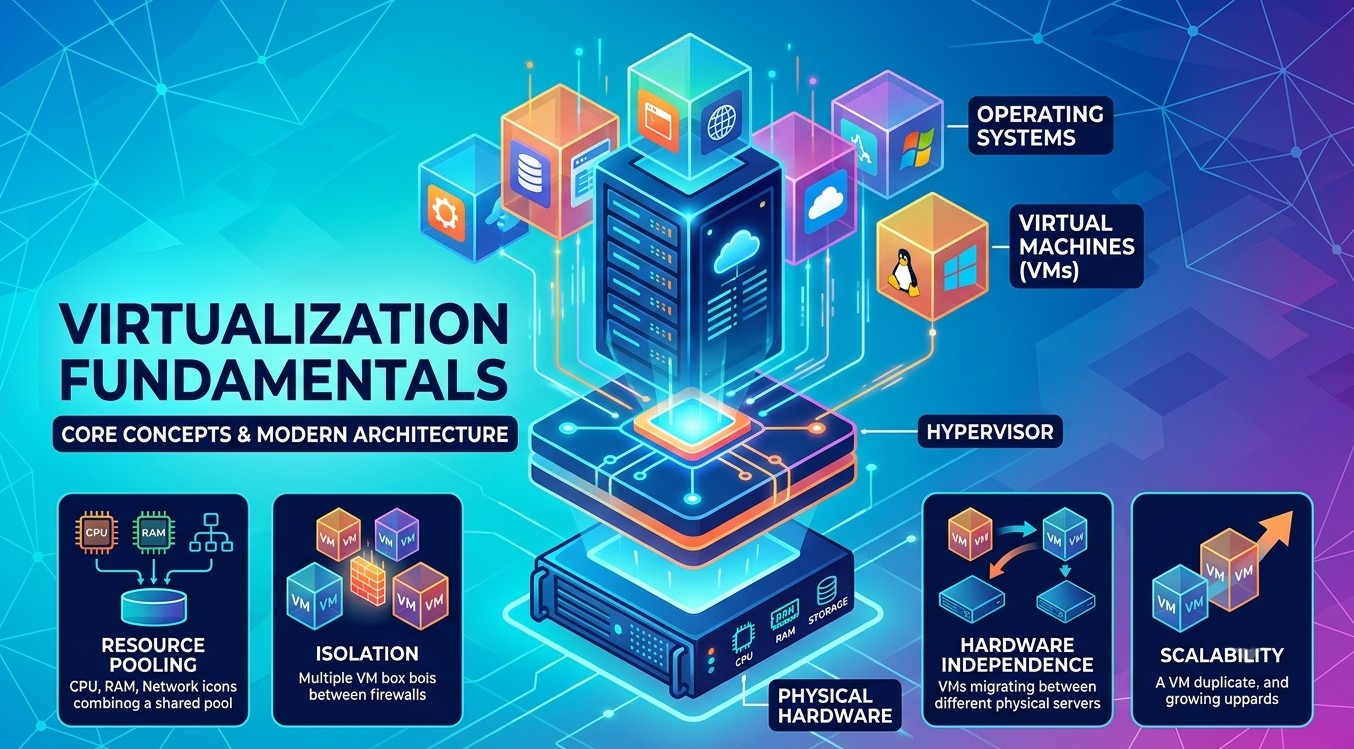
Virtualization Fundamentals
Introduction
Virtualization has transformed modern IT infrastructure by enabling organizations to maximize hardware utilization, improve scalability, reduce operational costs, and simplify management. Instead of dedicating physical hardware to a single application or service, virtualization allows multiple isolated environments to share the same underlying resources.
Today, virtualization technologies are widely used in data centers, cloud computing platforms, enterprise networks, and development environments. Whether deploying virtual machines, running containerized applications, or segmenting network traffic using Virtual Routing and Forwarding (VRF), virtualization plays a critical role in modern computing and networking.
This article explores three important virtualization concepts:
- Server Virtualization
- Containers
- Virtual Routing and Forwarding (VRFs)
What Is Virtualization?
Network virtualization is the process of combining hardware and software network resources and network functionality into a single, software-based administrative entity—often called a virtual network.
To put it simply: just as server virtualization allows you to run multiple virtual servers on a single physical machine, network virtualization allows you to run multiple independent virtual networks over a single physical network infrastructure.
How It Works
Traditionally, networks are tied strictly to physical hardware (routers, switches, cables). If you wanted to isolate traffic or create a new network segment, you had to manually configure physical devices or buy new hardware.
Network virtualization decouples the virtual networks from the underlying physical hardware. It creates a software abstraction layer that mimics physical networking components.
The Two Core Components:
- The Underlay Network: This is the physical infrastructure—the actual cables, switches, and routers that move the data packets.
- The Overlay Network: This is the virtual network built on top of the underlay. Software defines how traffic flows, completely independent of the physical setup beneath it.
Key Benefits of Virtualization
- Agility and Speed: Instead of manually configuring switches and routing tables over days or weeks, administrators can spin up, change, or tear down virtual networks in minutes using software.
- Cost Efficiency: It reduces the need to buy expensive, specialized physical hardware. You can maximize the use of your existing hardware.
- Enhanced Security (Micro-segmentation): You can isolate different virtual networks from one another. If one virtual network gets compromised by malware, the threat is contained and cannot easily spread to other virtual networks on the same physical hardware.
- Automation: Because the network is defined by software, routine tasks can be programmed and automated, reducing human error.
Types of Virtualization
Virtualization isn’t just limited to servers or networks; it can be applied to almost every layer of an IT ecosystem. By inserting a software layer (a hypervisor or virtualization manager) between the physical hardware and the user, you can virtualize hardware, software, storage, and more.
Here are the primary types of virtualization used today:
- Server Virtualization
- Network Virtualization
- Storage Virtualization
- Desktop Virtualization (VDI)
- Application Virtualization
- Data Virtualization
1. Server Virtualization
This is the most common form of virtualization. It masks server resources (including the number and identity of individual physical servers, processors, and operating systems) from server users.
An administrator uses software called a hypervisor to divide one physical server into multiple isolated virtual environments, called Virtual Machines (VMs). Each VM runs its own operating system.
- Why use it: It maximizes hardware utilization, drastically reduces physical server sprawl, and saves on power and cooling costs.
2. Network Virtualization
As we touched on earlier, network virtualization decouples virtual networks from the underlying physical hardware. It combines physical networks into a single software-based resource, or conversely, splits a single physical network into multiple independent, isolated virtual networks.
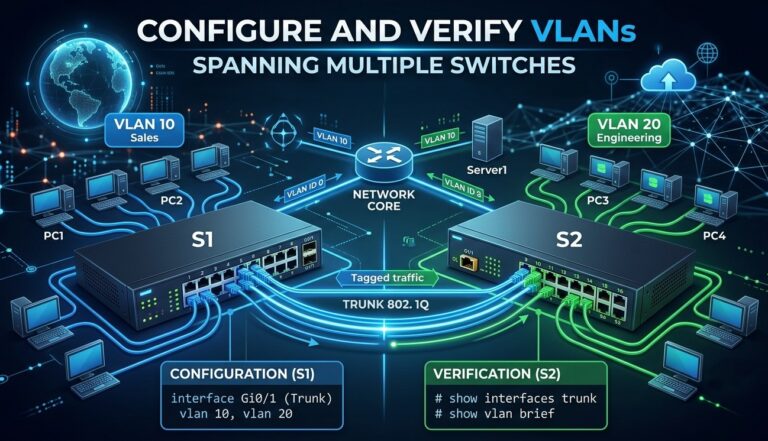
- Key components: Includes VLANs (Virtual Local Area Networks), SDN (Software-Defined Networking), and NFV (Network Functions Virtualization).
- Why use it: It allows for rapid provisioning of networks, automated management, and tight security through micro-segmentation.
3. Storage Virtualization
Storage virtualization pools physical storage from multiple network storage devices so that it looks like a single, monolithic storage device managed from a central console.
- How it works: It hides the complex internal structure of the storage area network (SAN) from users and software applications.
- Why use it: It makes backup, archiving, and recovery easier, faster, and less expensive by allowing administrators to allocate storage dynamically based on actual need.
4. Desktop Virtualization (VDI)
Desktop virtualization separates the desktop environment (the OS, apps, and user settings) from the physical computer used to access it. The actual processing and storage happen on a centralized server in a data center.
- Common Form: Virtual Desktop Infrastructure (VDI), where users log into a virtual machine running a desktop OS hosted on a server.
- Why use it: It simplifies IT management (updates can be pushed to everyone at once), enhances security (data doesn’t live on the user’s local laptop), and allows users to access their work desktop from any device, anywhere.
5. Application Virtualization
Application virtualization encapsulates an application, detaching it from the underlying operating system. The application runs in a small, isolated virtual environment (a “sandbox”) on the user’s device.
- How it differs from VMs: It doesn’t virtualize a whole operating system—just the software wrapper needed for that specific app to run.
- Why use it: It prevents conflicts between different applications (e.g., running two different versions of Excel on the same machine) and makes software deployment incredibly clean.
6. Data Virtualization
Data virtualization allows applications to retrieve and manipulate data without requiring technical details about the data itself—such as how it is formatted or where it is physically located. It sits between disparate data sources (databases, cloud storage, and spreadsheets) and presents them as a single, unified data layer.
- Why use it: It allows business analysts to run reports across multiple disconnected data systems in real-time without having to move or copy the data into a single warehouse first.
Summary
| Type of Virtualization | What is abstracted? | Key Benefit |
| Server | Physical CPU, RAM, and Host Hardware | Maximizes hardware use; reduces server sprawl. |
| Network | Cables, switches, routers, and bandwidth | Rapid provisioning; automated security. |
| Storage | Physical hard drives and solid-state arrays | Unified, easier backup and storage management. |
| Desktop | The entire desktop operating system | Secure, centralized remote work access. |
| Application | The application environment / OS registry | Eliminates software conflicts; easy deployment. |
| Data | Data location, format, and storage source | Unified real-time reporting from separate databases. |
Virtual Machine
A Virtual Machine (VM) is a software-defined computer that runs inside a physical computer. It acts exactly like an independent physical computer—complete with its own operating system (OS), CPU, memory, storage, and network interface—but it exists entirely as code.
If you think of your physical computer as an apartment building, a virtual machine is like renting an individual apartment inside it. It has its own door, its own kitchen, and its own rules, but it shares the building’s underlying foundation.
The Architecture of a VM
To understand a VM, it helps to look at the layers that make it work:
- The Host Machine: This is the physical hardware (your actual computer or a massive server in a data center) providing the real CPU, RAM, and hard drives.
- The Hypervisor: This is the crucial software layer installed on the physical hardware. It pulls the physical resources and slices them up into virtual components. It acts as the traffic cop, ensuring VMs don’t interfere with each other.
- The Guest OS (The VM): This is the operating system installed inside the VM (e.g., running Linux inside a window on a Windows laptop). The guest OS has no idea it is virtual; it thinks it is running on real hardware.
Why Use Virtual Machines?
VMs revolutionized IT infrastructure because they solved a massive problem: underutilized hardware. Before VMs, companies ran one application per physical server. If that app only used 5% of the server’s power, the other 95% was wasted.
Key Use Cases:
- Server Consolidation: You can take 10 different physical servers running at 10% capacity and turn them into 10 virtual machines running on one powerful physical server.
- Testing and Development (Sandboxing): Developers can safely test sketchy software, build apps, or experiment with different operating systems. If a VM catches a virus or crashes, you can delete it or roll it back to a previous “snapshot” in seconds without hurting your main computer.
- Running Legacy Software: If your business relies on an old app that only runs on Windows 7 or an old version of Linux, you can run it inside a VM on a modern Windows 11 host.
- Cloud Computing: When you rent a server on AWS, Google Cloud, or Microsoft Azure, you aren’t renting a physical machine; you are spinning up a Virtual Machine on their massive hardware infrastructure.
Hypervisor
A hypervisor (also known as a virtual machine monitor or VMM) is the software layer that makes virtualization possible.
It sits between the physical hardware of a computer and the virtual machines (VMs). Its main job is to pull the physical resources—like the CPU, memory (RAM), storage, and networking—and slice them up so that multiple independent operating systems can share them safely.
Without a hypervisor, you could only run one operating system on a piece of hardware at a time.
Types of Hypervisors
Hypervisors are categorized into two types based on where they are installed in the technology stack:
- Type 1: Bare-Metal Hypervisors
- Type 2: Hosted Hypervisors
Type 1: Bare-Metal Hypervisors
A Type 1 hypervisor is installed directly on the physical hardware of the computer, completely replacing the traditional operating system. It has direct access to the CPU and RAM, making it highly efficient, secure, and performant.
- Where it’s used: Enterprise data centers, server rooms, and cloud computing environments (like AWS or Azure).
- Popular Examples: VMware ESXi, Microsoft Hyper-V, and open-source KVM (Kernel-based Virtual Machine).
Type 2: Hosted Hypervisors
A Type 2 hypervisor runs as an application inside an existing operating system. The physical hardware runs a “host” OS (like Windows or macOS), the hypervisor software is opened inside that OS, and then virtual machines are built inside the hypervisor.
- Where it’s used: On personal laptops and desktops for software development, testing applications, or running a secondary OS (like running Linux on a Mac).
- Popular Examples: Oracle VirtualBox, VMware Workstation, and Parallels Desktop.
What Does a Hypervisor Actually Do?
The hypervisor acts like an incredibly efficient traffic cop or property manager. It performs three critical functions:
- Resource Allocation: It dynamically hands out processing power, memory, and storage to each VM based on what they need and what rules the administrator has set.
- Isolation: It creates strict walls between VMs. If one VM gets a virus, crashes, or suffers a massive glitch, the hypervisor ensures it doesn’t affect the other VMs or the physical host machine.
- Management: It allows administrators to easily take “snapshots” (saved states) of a VM, clone them, or instantly move a running VM from one physical server to another without any downtime.
Containers
Containers are lightweight, standalone packages of software that include everything needed to run an application: the code, runtime, system tools, system libraries, and settings.
To put it simply: containers allow developers to isolate an application from its environment, ensuring that it works uniformly despite differences between development, testing, and production stages.
How Containers Work
Traditionally, to isolate applications, businesses used Virtual Machines (VMs). Each VM required its own entire operating system (OS), which made them bulky and slow to start.
Containers take a different approach. Instead of virtualizing the underlying hardware, containers virtualize the host operating system.
All containers running on a single physical machine share that machine’s operating system kernel. They sit on top of a container engine (like Docker) and only package the application logic and its immediate dependencies. Because they don’t need a heavy guest OS, they are incredibly lightweight.
Key Benefits of Containers
- Consistency and Portability (“It works on my machine”): Because everything the app needs is bundled inside the container, it will run exactly the same way on a developer’s laptop, a testing server, or a massive public cloud infrastructure.
- Efficiency and Speed: Containers share the host OS, meaning they use significantly less CPU, RAM, and storage than VMs. They can spin up or shut down in milliseconds.
- Scalability: Because they are so lightweight, you can easily spin up hundreds of identical containers to handle a sudden spike in website traffic and destroy them just as quickly when traffic drops.
- Microservices Architecture: Containers are the backbone of modern cloud applications. Instead of building one massive app (a monolith), developers break it down into small services (e.g., a login service, a payment service, a shopping cart service), each running in its own container.
The Container Ecosystem
When working with containers, you will constantly encounter a few key tools and terms:
- 1. Docker: Docker is the technology that popularized containers. It provides the software platform that allows developers to easily build, test, and deploy containers.
- 2. Container Images: A container image is a static, read-only blueprint that contains the instructions for creating a container. Think of the image as the recipe, and the container as the actual dish cooked from it.
- 3. Kubernetes (K8s): When an enterprise scales up, managing thousands of containers manually becomes impossible. Kubernetes is an open-source orchestration system that automates the deployment, scaling, and management of containerized applications. It acts as the “manager” of the entire container fleet.
Virtual Routing and Forwarding (VRF)
VRF stands for Virtual Routing and Forwarding. It is a technology used in computer networking that allows a single router to run multiple independent routing tables at the same time.
To put it simply: VRF is the networking equivalent of server virtualization. Just as server virtualization lets you run multiple independent virtual machines (VMs) on a single physical server, VRF lets you run multiple independent “virtual routers” inside a single physical router.
How VRF Works
In a traditional network setup, a router has exactly one routing table. If a packet comes in with a destination IP address, the router looks at that single table to figure out where to send it.
With VRF, the router splits its physical interfaces (or sub-interfaces) into separate virtual routing instances. Each instance has its own isolated routing table.
Because these tables are completely isolated from one another:
- Traffic from one VRF cannot cross over into another VRF unless you explicitly configure a path for it.
- IP addresses can overlap. You can use the exact same IP address scheme (like
192.168.1.0/24) in VRF A and VRF B without causing any IP conflicts or routing loops.
Why Use VRF? (Key Use Cases)
VRF is heavily used by Internet Service Providers (ISPs), data centers, and large enterprise networks for three main reasons:
- 1. Network Isolation and Security
- If a large corporation has a “Guest Wi-Fi” network and a secure “Corporate Finance” network, they don’t want guest traffic to ever touch corporate servers. Instead of buying two separate sets of expensive routers, the IT team can create two VRFs on the same router. The networks remain completely blind to each other’s existence at the hardware level.
- 2. Service Provider Multi-Tenancy
- ISPs use VRF to provide MPLS VPN services to different business clients. If Company X and Company Y are both clients of the same ISP, they might both use the private IP range
10.0.0.0/8internally. By putting Company X intoVRF_Xand Company Y intoVRF_Y, the ISP can safely route traffic for both companies through the exact same physical provider routers without mixing up their data or causing IP conflicts.
- ISPs use VRF to provide MPLS VPN services to different business clients. If Company X and Company Y are both clients of the same ISP, they might both use the private IP range
- 3. Mergers and Acquisitions
- When two companies merge, they often discover they used the exact same internal IP addressing system. Changing thousands of IP addresses across an enterprise is a nightmare. Using VRF allows the network team to onboard the new company’s network immediately, keeping the traffic separate until they can properly integrate the systems.
Difference between VRF and VLAN
People often confuse VRFs and VLANs because they both segment networks, but they operate at different layers of the networking stack:
- VLAN (Virtual Local Area Network): Operates at Layer 2 (Data Link Layer). It slices up a switch to isolate devices in the same local broadcast domain.
- VRF (Virtual Routing and Forwarding): Operates at Layer 3 (Network Layer). It slices up a router to isolate routing tables and decide how traffic moves between different networks.
In a typical enterprise setup, VLANs are mapped directly into corresponding VRFs to maintain total isolation from the user’s laptop all the way through the core router network.
Virtual Routing and Forwarding (VRF) is a network virtualization technology that allows multiple independent routing tables to coexist on a single router.
Each VRF functions as a separate virtual router.
This enables multiple customers, departments, or services to use overlapping IP addresses while remaining isolated.
Comparison between Virtual machines, containers and VRF
While Virtual Machines (VMs), Containers, and VRF (Virtual Routing and Forwarding) are all virtualization technologies designed to split a single resource into multiple isolated environments, they operate on completely different layers of technology.
- VMs virtualize the physical hardware.
- Containers virtualize the operating system.
- VRF virtualizes the network router and its routing tables.
Comparison Table
| Feature | Virtual Machines (VMs) | Containers | Virtual Routing & Forwarding (VRF) |
| What it Virtualizes | Physical Computer Hardware (CPU, RAM, Disk) | Operating System (OS Kernel) | A Router’s Routing Table (Network Layer) |
| Primary Focus | Running multiple different Operating Systems on one physical server. | Packaging, deploying, and scaling specific software applications. | Isolating network traffic and allowing overlapping IP addresses on one router. |
| Core Software Layer | Hypervisor (e.g., VMware ESXi, VirtualBox) | Container Engine (e.g., Docker, containerd) | Router Firmware / OS (e.g., Cisco IOS, Juniper Junos) |
| Guest OS Required? | Yes. Every VM runs its own heavy, full instance of an OS. | No. Shares the host machine’s OS kernel. | No. Only manages routing logic and isolated network pathways. |
| Size Footprint | Heavy (Gigabytes per VM) | Lightweight (Megabytes per container) | Negligible (Pure text/data tables inside router memory) |
| Startup / Spin-up Time | Minutes (Must go through full OS boot process) | Milliseconds to Seconds (App launches instantly) | Instant (Applied via configuration commands) |
| Isolation Boundary | Excellent. Complete hardware-level isolation. | Good. Process-level isolation within the same OS. | Excellent. Layer 3 network-level isolation; paths are completely blind to each other. |
| Common Use Case | Server consolidation, running legacy apps, cloud infrastructure (AWS/Azure). | Microservices, DevOps, CI/CD pipelines, highly scalable web applications. | Multi-tenant ISP networks, separating Guest vs. Corporate Wi-Fi on the same hardware. |
| Real-World Analogy | Standalone Houses in a neighborhood sharing a plot of land but entirely self-contained. | Apartment Rooms sharing the building’s central plumbing, framing, and infrastructure. | Office Suites inside a commercial building with secure, badge-protected doors. |
Conclusion
Virtualization is a foundational technology in modern IT environments. Server virtualization enables multiple operating systems to run on a single physical server through virtual machines. Containers provide lightweight application isolation and rapid deployment, making them ideal for cloud-native and DevOps environments. Virtual Routing and Forwarding (VRF) extends virtualization into networking by creating multiple independent routing tables on a single router, enabling secure and scalable network segmentation.
Together, server virtualization, containers, and VRFs allow organizations to maximize efficiency, improve resource utilization, simplify management, and support the scalable infrastructure required by modern data centers and cloud environments.