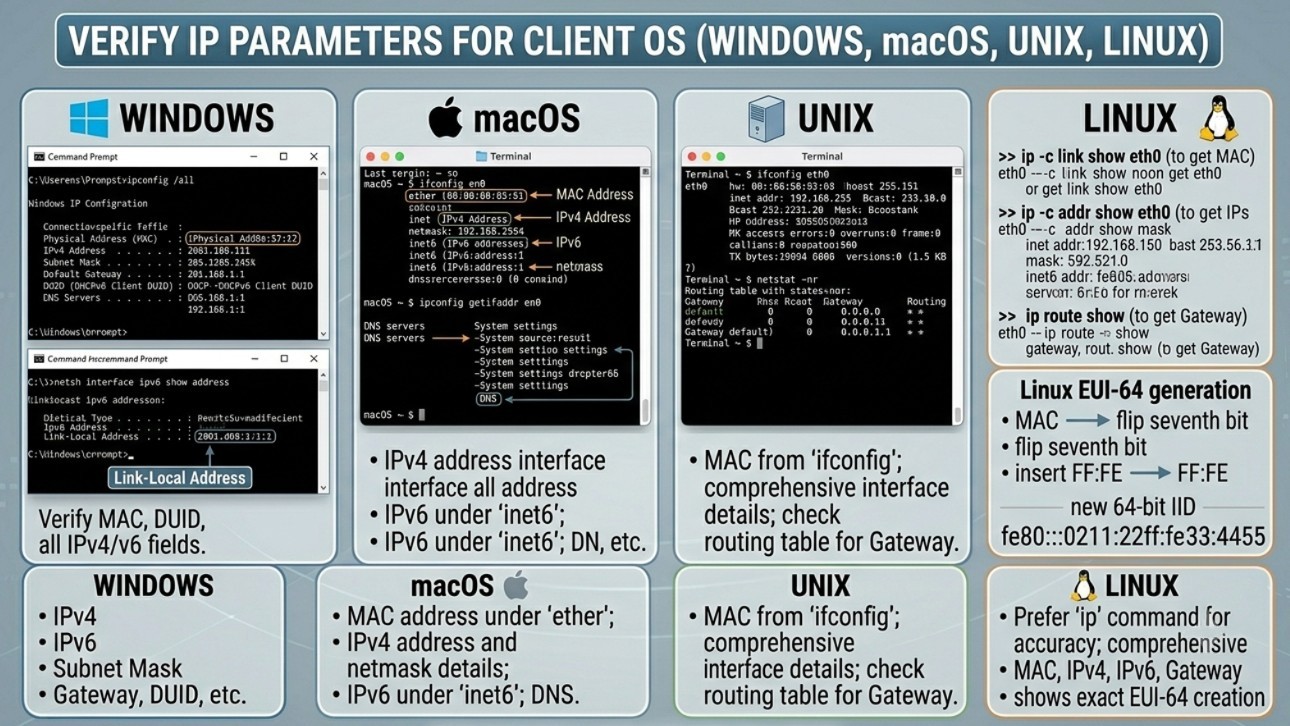
Verify IP parameters for Client OS
Introduction
In modern computer networks, every device must have correct Internet Protocol (IP) settings to communicate with other devices and access network resources. Whether troubleshooting connectivity problems, verifying DHCP assignments, or validating network configurations, network administrators frequently need to examine a client’s IP parameters.
IP parameters include information such as:
- IP Address
- Subnet Mask or Prefix Length
- Default Gateway
- DNS Server Addresses
- MAC Address
- DHCP Information
- IPv4 and IPv6 Configuration
Every operating system provides tools that allow users and administrators to view and verify these parameters. This article explains how to verify IP settings on Windows, macOS, and Linux systems using both graphical and command-line methods.
Key IP Parameters to Verify
When examining a client device, verify the following information:
| Parameter | Purpose |
|---|---|
| IP Address | Identifies the device on the network |
| Subnet Mask / Prefix Length | Defines the network boundary |
| Default Gateway | Router used to reach remote networks |
| DNS Server | Resolves hostnames to IP addresses |
| MAC Address | Hardware address of the network adapter |
| DHCP Status | Indicates whether addressing is automatic |
| IPv6 Address | IPv6 network connectivity |
| Link-Local Address | Local IPv6 communication |
| Lease Information | DHCP assignment details |
Verifying IP Parameters in Windows
Microsoft Windows provides several methods to view network configuration information.
Method 1: Using ipconfig Command
The most commonly used command is:
ipconfigExample Output
Ethernet adapter Ethernet:

IPv4 Address . . . . . . . . . : 192.168.1.100
Subnet Mask . . . . . . . . . : 255.255.255.0
Default Gateway . . . . . . . : 192.168.1.1
This output displays basic IPv4 configuration information.
Method 2: Using ipconfig /all
For detailed information:
ipconfig /all
The following parameters will be displayed as the output.
- Host name
- MAC address
- DHCP status
- IPv4 address
- IPv6 address
- DNS servers
- DHCP server
- Lease-obtained time
- Lease expiration time
Example
Ethernet adapter Ethernet:

Description . . . . . . . . : Intel Ethernet Adapter
Physical Address . . . . . : 00-1A-2B-3C-4D-5E
DHCP Enabled . . . . . . . : Yes
IPv4 Address . . . . . . . : 192.168.1.100
Subnet Mask . . . . . . . . : 255.255.255.0
Default Gateway . . . . . . : 192.168.1.1
DNS Servers . . . . . . . . : 8.8.8.8
This command is one of the most important troubleshooting tools in Windows networking.
Method 3: Using Network Settings GUI
Windows 10/11
- Open Settings
- Select Network & Internet
- Choose:
- Ethernet
- Wi-Fi
- Click Properties
You can view:
- IPv4 Address
- IPv6 Address
- DNS Servers
- Gateway
- MAC Address
This method is useful for users who prefer a graphical interface.
Windows Verification Commands
- Verify Connectivity: The ping command is used to test and verify connectivity between two devices on a network (like your PC and a server). It works by sending small messages called ICMP Echo Requests and waiting for a reply (ICMP Echo Reply).
- Example: Open the command prompt in Windows and run “ping 192.168.1.1“
- Verify DNS Resolution: In Windows, the DNS resolution verification command is used to check whether a domain name is correctly translating into an IP address.
- Example: Run “nslookup google.com” command in command prompt
- Display ARP Cache: The command used to view the ARP (Address Resolution Protocol) cache in Windows is “arp -a“.
- This command shows IP-to-MAC address mappings.
Verifying IP Parameters in macOS
Apple macOS provides both graphical and terminal-based methods for verifying network settings.
Method 1: Using System Settings
macOS Ventura and Later
- Open System Settings
- Select Network
- Choose:
- Wi-Fi
- Ethernet
The system displays:
- IP Address
- Router Address
- DNS Servers
- IPv6 Configuration
- Connection Status
Method 2: Using ifconfig Command
The ifconfig command in macOS is used to view and configure network interfaces (like Wi-Fi, Ethernet, etc.). To run this command , open terminal and then,
- Press Cmd + Space
- Type Terminal
- Press Enter
ifconfig
Example Output
en0: flags=8863<UP,BROADCAST,RUNNING>
inet 192.168.1.105 netmask 0xffffff00
inet6 fe80::1234:abcd:5678:90ef
ether 00:1a:2b:3c:4d:5e
Information displayed includes:
- IPv4 address
- IPv6 address
- MAC address
- Interface status
Method 3: Display Specific Interface
- In macOS, you can use
ifconfigthe following interface name to view details of only that interface.
ifconfig en0
This command displays information for a particular network adapter.
Method 4: View Routing Information
netstat -rnis used to see how your system sends data to different networks and destinations.
netstat -rn
Look for:
default 192.168.1.1
This identifies the default gateway.
Method 5: View DNS Servers
- You can view DNS servers your Mac is using with a few simple commands.
scutil --dns
This displays:
- DNS servers
- Search domains
- Resolver information
Verifying IP Parameters in Linux
Linux systems offer powerful networking tools for viewing and troubleshooting IP configurations.
Modern Linux distributions primarily use the ip command, although older systems may still use ifconfig.
Method 1: Using ip addr
- The
ip addrcommand (also written asip address) is used to display and manage network interface IP addresses in Linux. It is part of the modernipcommand suite (replaces olderifconfig).
ip addr show
Example Output
2: eth0: <BROADCAST,UP,LOWER_UP>
    inet 192.168.1.10/24
    inet6 fe80::1a2b:3c4d:5e6f
    link/ether 00:1a:2b:3c:4d:5e
This shows:
- Network interfaces (eth0, wlan0, lo, etc.)
- IPv4 address
- IPv6 address
- MAC address
- Interface status (UP/DOWN)
- Broadcast and subnet info
Method 2: Display Specific Interface
- To display details of a specific network interface in Linux, use
ip addr show eth0
Example Output
2: eth0: <BROADCAST,UP,LOWER_UP>
inet 192.168.1.10/24
inet6 fe80::1a2b:3c4d:5e6f
link/ether 00:1a:2b:3c:4d:5e
This displays information for one interface.
Method 3: Verify Routing Table
- To verify routing information (routing table) in Linux, use the following commands.
ip route
Example output:
default via 192.168.1.1 dev eth0
192.168.1.0/24 dev eth0 proto kernel scope link src 192.168.1.10
This displays:
- default via 192.168.1.1 → internet gateway/router
- dev eth0 → interface used
- 192.168.1.0/24 → local network
Method 4: Verify IPv6 Routes
- To verify IP routing information in Linux, use the
ip routecommand.
ip route
Example Output
default via 192.168.1.1 dev eth0
192.168.1.0/24 dev eth0 proto kernel scope link src 192.168.1.10
This displays:
default→ Default route for internetvia 192.168.1.1→ Gateway/router IPdev eth0→ Interface used192.168.1.0/24→ Local networksrc 192.168.1.10→ Source IP
Method 5: Verify DNS Servers
- DNS servers in Linux can be checked using the following commands.
cat /etc/resolv.conf
Example Output:
nameserver 8.8.8.8
nameserver 1.1.1.1
This displays:
- DNS server
- IP addresses
- Search domains
Method 6:
nmcliis a command-line tool used to manage networking through NetworkManager in Linux.- It can:
- View network status
- Connect to Wi-Fi
- Configure IP addresses
- Manage DNS settings
- Enable/disable interfaces
On systems using NetworkManager:
nmcli device show
Example output
DEVICE   TYPE      STATE      CONNECTION
wlan0    wifi      connected  HomeWiFi
eth0     ethernet  connected  Wired
Best Practices for Verifying IP Parameters
- Verify physical connectivity first.
- Confirm IP address assignment.
- Check subnet mask or prefix length.
- Verify the default gateway.
- Validate DNS server configuration.
- Test local connectivity.
- Test Internet connectivity.
- Confirm IPv6 settings when applicable.
- Review DHCP lease information.
- Check routing tables during advanced troubleshooting.
Conclusion
Verifying IP parameters is one of the most important steps in network troubleshooting and administration. Windows, macOS, and Linux all provide tools for viewing IP addresses, subnet masks, gateways, DNS servers, MAC addresses, and IPv6 information. Commands such as ipconfig, ifconfig, and ip addr allow administrators to quickly identify configuration issues and restore network connectivity. Mastering these verification techniques is essential for network engineers, system administrators, and IT support professionals working in modern IPv4 and IPv6 environments.

I like it when individuals get together and share ideas.
Great blog, stick with it!