Configure and Verify EtherChannel
Introduction to EtherChannel
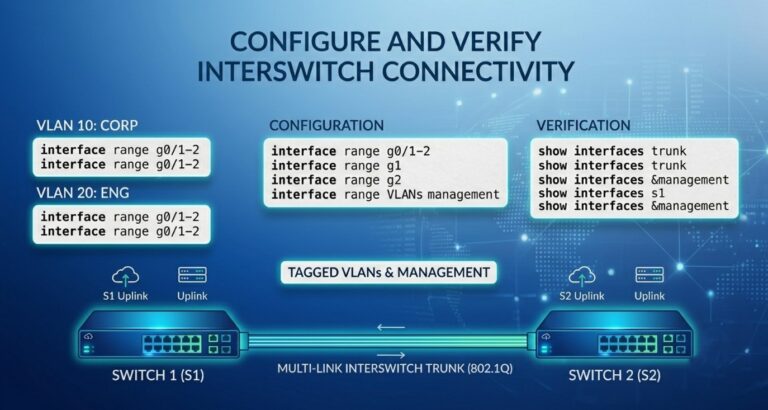
EtherChannel is a technology used in computer networking to combine multiple physical Ethernet links into a single logical connection. This increases bandwidth, provides redundancy, and improves network reliability. In Cisco networks, EtherChannel helps prevent link failures and supports load balancing between switches.
One of the most widely used EtherChannel negotiation protocols is LACP (Link Aggregation Control Protocol). LACP is an IEEE standard protocol defined under IEEE 802.3ad and IEEE 802.1AX.
EtherChannel can operate in both:
- Layer 2 EtherChannel
- Layer 3 EtherChannel
What is LACP
LACP (Link Aggregation Control Protocol) is an open-standard network protocol defined in IEEE 802.3ad (and later moved to IEEE 802.1AX). It is used to automatically bundle multiple physical network links into a single, logical link to increase bandwidth and provide redundancy.
While CDP and LLDP are used for discovering neighbors, LACP is used to combine ports together. This bundled link is commonly referred to as an EtherChannel, Port-Channel, or Link Aggregation Group (LAG).
How LACP Works
LACP dynamically communicates between two switches to negotiate and maintain the bundle. If four 1 Gbps cables are connected between two switches and configured with LACP, the switches treat them as a single 4 Gbps logical link.
If one of those physical cables is accidentally unplugged or fails, LACP automatically detects the failure and shifts the traffic to the remaining active cables in milliseconds, preventing a network outage.
LACP Configuration Modes
When configuring an interface for LACP, you assign it to a channel group and choose an operational mode:
- Active: The port actively sends LACP packets to initiate a negotiation with the remote device.
- Passive: The port waits quietly. It listens for incoming LACP packets but will not initiate the negotiation on its own.
How Modes Pair Up:
| Switch A Mode | Switch B Mode | Will the Port-Channel Form? |
| Active | Active | Yes (Both sides negotiate) |
| Active | Passive | Yes (Active initiates, Passive responds) |
| Passive | Passive | ❌ No (Both sides wait for the other) |
How to Configure LACP (Step-by-Step)
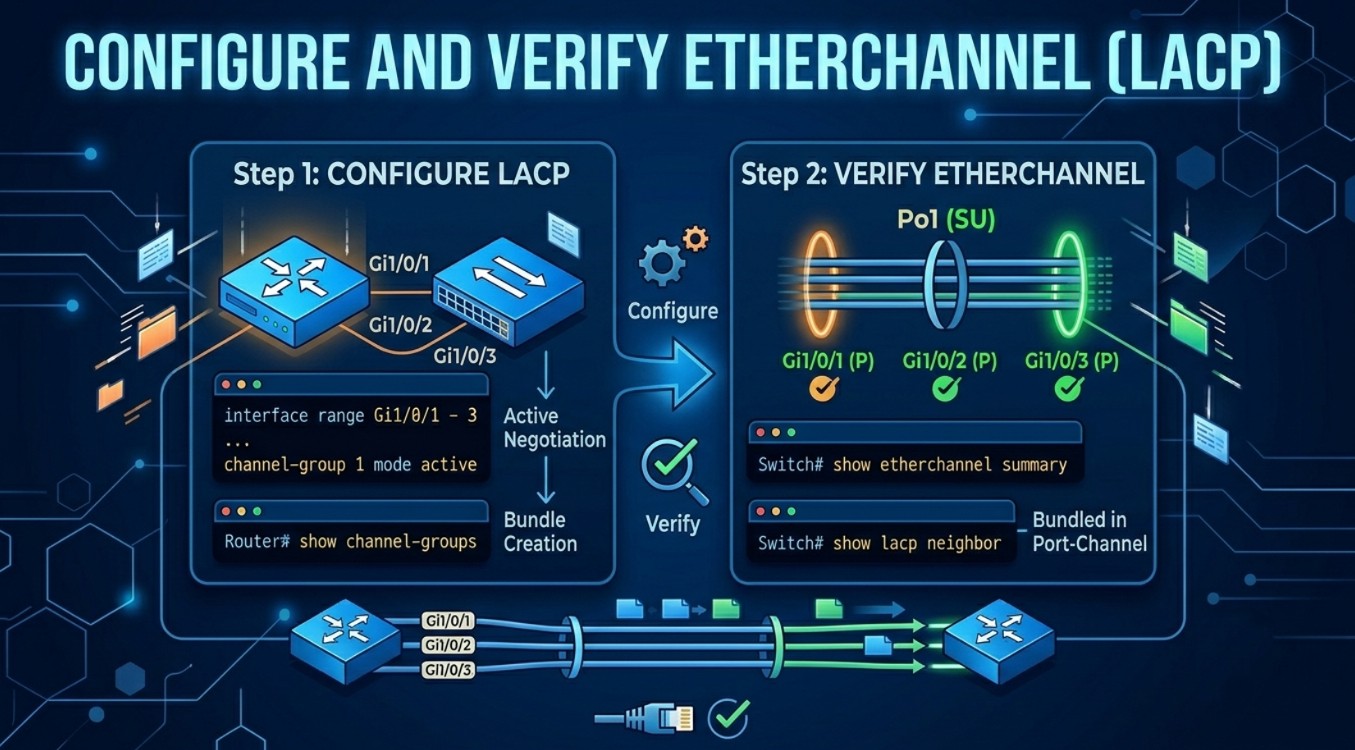
Let’s bundle two ports—GigabitEthernet 0/1 and GigabitEthernet 0/2—between Switch A and Switch B. We will set both switches to Active mode.
Step 1: Configure Switch A
We will select both ports at the same time using the range command, tell them to use LACP, and assign them to a group (Group 1).
SwitchA# configure terminal
SwitchA(config)# interface range gigabitethernet 0/1 - 2
SwitchA(config-if-range)# channel-protocol lacp
SwitchA(config-if-range)# channel-group 1 mode active
SwitchA(config-if-range)# exit
Step 2: Configure Switch B
Now, we do the exact same thing on the other switch.
SwitchB# configure terminal
SwitchB(config)# interface range gigabitethernet 0/1 - 2
SwitchB(config-if-range)# channel-protocol lacp
SwitchB(config-if-range)# channel-group 1 mode active
SwitchB(config-if-range)# exit
Step 3: Configure the Combined Link
Once the ports are grouped, the switch automatically creates a new virtual port called Port-Channel 1.
From now on, if you want to change settings (like allowing specific VLANs), you must apply them to this virtual Port-Channel interface, not the physical ports.
SwitchA(config)# interface port-channel 1
SwitchA(config-if)# switchport mode trunk
SwitchA(config-if)# switchport trunk allowed vlan 10,20
How to Check If It’s Working
To make sure your bundle is running correctly, use this simple command:
SwitchA# show etherchannel summary
Look at the bottom of the output for your group. You want to see two specific letters:
(SU)next to the Port-channel name. S means switched, and U means In Use (working).(P)next to your physical ports (like Gi0/1 and Gi0/2). P means Bundled (successfully linked).
If you see these letters, your LACP bundle is up, running, and speeding up your network!
Rules to Prevent Mistakes
If your bundle isn’t working, double-check that the physical ports on both sides match perfectly. They must share the exact same:
- Speed: You cannot mix a 100 Mbps port with a 1 Gbps port.
- Duplex: Both sides must be set to Full Duplex.
- VLANs: Every port in the bundle must belong to the same VLAN before you link them together.
Conclusion
Configuring and verifying Layer 2 and Layer 3 EtherChannel using LACP is an essential networking skill. EtherChannel improves bandwidth utilization, provides redundancy, and simplifies network management. By properly configuring LACP, network administrators can ensure reliable and efficient communication between switches and routers.