Understanding Motherboard Firmware: BIOS vs. UEFI Explained
When you press the power button on your computer, your monitor doesn’t instantly jump to a Windows, macOS, or Linux loading screen. Instead, a critical, low-level program starts running behind the scenes. This program is called motherboard’s firmware.
For over three decades, the industry standard for this firmware was the BIOS. However, modern computers have almost completely transitioned to its successor, UEFI.
If you are building a PC, upgrading a hard drive, or troubleshooting a boot error, understanding the architectural shift from BIOS to UEFI is essential.
What is Motherboard Firmware
Motherboard firmware acts as the ultimate bridge between your computer’s physical hardware (the CPU, RAM, graphics card, and storage drives) and your operating system. Without firmware, the operating system has no way of communicating with or initializing the hardware during the startup process.
The firmware has one primary job when you flip the switch: perform a POST (Power-On Self-Test) to ensure all hardware is functional, locate the bootloader, and hand control over to the operating system.
The Legacy BIOS
Introduced in 1981 for the original IBM PC, BIOS stands for Basic Input/Output System. It is a legacy architecture embedded on a small, non-volatile ROM chip welded directly onto the motherboard.
When a BIOS-based computer boots up, it executes the POST sequence sequentially—checking the processor, memory, and peripherals one by one. Once the hardware passes inspection, the BIOS looks at the very first sector of your hard drive, known as the Master Boot Record (MBR). The MBR tells the BIOS where the operating system is located, allowing the boot process to finish.
The Fatal Flaws of Legacy BIOS
Because BIOS was designed in the early 1980s, it is fundamentally restricted by the hardware limitations of that era:
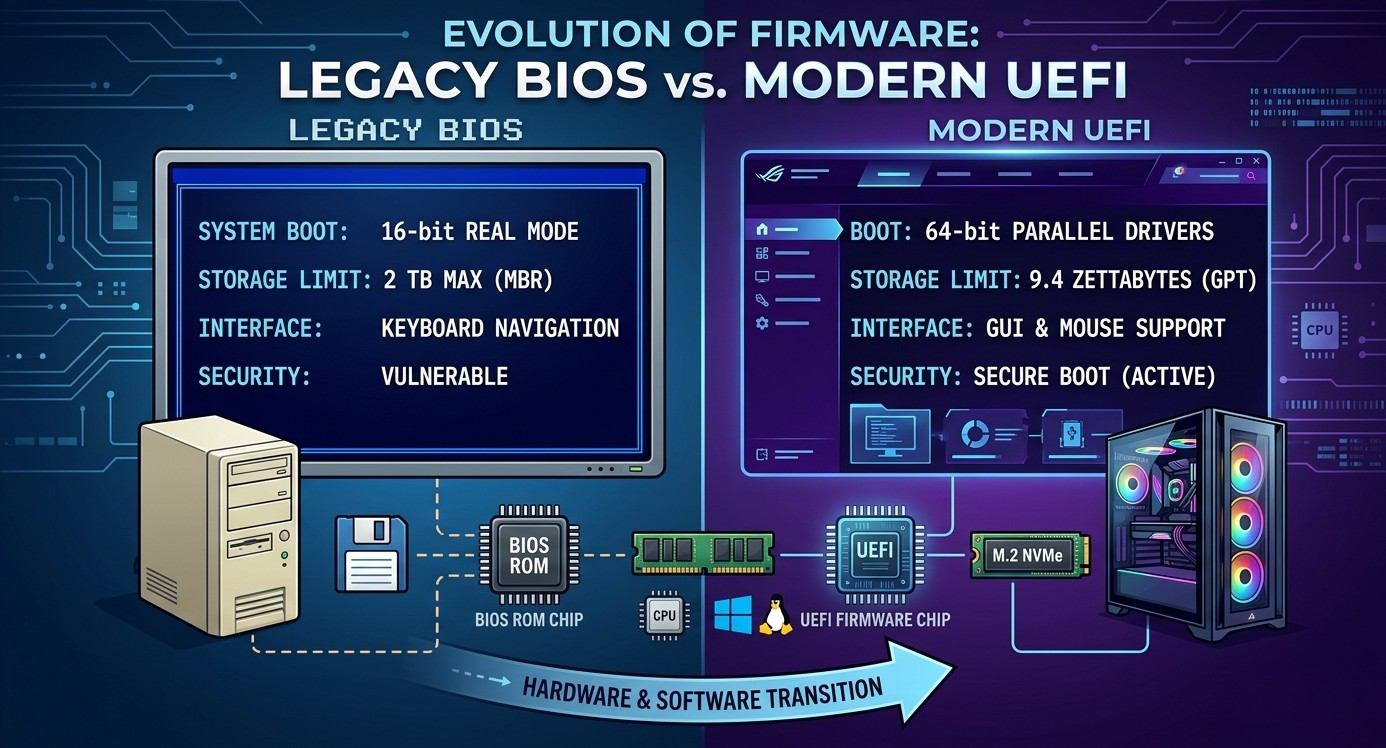
- 16-Bit Real Mode: BIOS operates in a 16-bit processing environment. This limits it to addressing a maximum of just 1 Megabyte (MB) of system RAM during startup. Because of this memory constraint, BIOS interfaces are restricted to text-only, blue-and-grey screens that can only be navigated using a keyboard.
- The 2 Terabyte (TB) Hard Drive Limit: Because BIOS relies on the MBR partition scheme, it tracks data using a 32-bit addressing system. Mathematically, this caps the maximum size of a bootable hard drive at 2 TB. If you install a 4 TB drive in a pure BIOS system, half of your storage becomes entirely invisible and unusable.
The Modern Successor: UEFI
UEFI stands for Unified Extensible Firmware Interface. Originally developed by Intel in the late 1990s to handle massive server architectures, it was later standardized by a coalition of tech giants (including AMD, Microsoft, and Apple) into the Unified EFI Forum.
UEFI is not just a cosmetic upgrade to BIOS; it is a complete paradigm shift. Instead of running as a rigid program locked to a motherboard chip, UEFI functions like a miniature operating system. It operates on top of the computer’s hardware and can execute applications, load drivers, and store configuration data in .efi files located inside a dedicated partition on your storage drive, called the EFI System Partition (ESP).
Architectural Breakthroughs of UEFI
- 32-Bit or 64-Bit Execution: UEFI can run in native 64-bit mode. This allows it to address massive amounts of system memory at startup, enabling high-resolution Graphical User Interfaces (GUIs) with mouse support, animations, and multiple language options.
- Virtually Infinite Storage Support: UEFI utilizes the GPT (GUID Partition Table) scheme instead of MBR. GPT uses 64-bit addressing, pushing the theoretical storage limit to 9.4 Zettabytes (or 9.4 billion Terabytes). GPT also allows for a virtually unlimited number of partitions on a single drive, whereas MBR limits you to just four.
BIOS vs. UEFI: Quick Comparison
| Core Feature | Legacy BIOS | Modern UEFI |
| Bit Architecture | 16-bit | 32-bit or 64-bit |
| User Interface | Text-only, keyboard navigation | Graphical (GUI), mouse & touch support |
| Maximum Drive Size | 2 Terabytes (TB) | 9.4 Zettabytes (ZB) |
| Partition Scheme | MBR (Max 4 primary partitions) | GPT (Virtually unlimited partitions) |
| Boot Mechanics | Serial (Sequential hardware check) | Parallel (Simultaneous hardware check) |
| Security Standards | None (Vulnerable to boot malware) | Secure Boot, Trusted Platform Module (TPM) |
Why Modern Computing Need UEFI
The transition to UEFI wasn’t just about adding mouse support to the setup menu; it was driven by security and performance necessities.
1. Robust Pre-Boot Security (Secure Boot)
Legacy BIOS is incredibly vulnerable to rootkits and bootkits—malware that infects the MBR. Because BIOS blindly runs whatever code is in the MBR, this malware can execute before your antivirus software even wakes up.
UEFI implements a protocol called Secure Boot. Secure Boot checks the digital signature of the operating system’s core boot files against a database of trusted cryptographic keys stored in the motherboard. If a piece of malware has tampered with your Windows or Linux bootloader, UEFI will detect the invalid signature and halt the system before the virus can execute.
2. Accelerated Boot Times
Because BIOS is limited to 16-bit mode, it must initialize hardware components sequentially. It checks the RAM, waits, checks the storage controller, waits, and so on. UEFI initializes hardware in parallel, meaning multiple components wake up simultaneously, drastically speeding up your computer’s overall boot time.
3. Smart Extensibility
Because UEFI supports native hardware drivers, motherboard manufacturers can build incredibly advanced tools directly into the firmware. Modern UEFI screens feature real-time hardware temperature monitors, fan-speed tuning graphs, built-in overclocking profiles, and even network tools that allow you to update the firmware directly over Wi-Fi without booting into an OS.
Compatability Support Module (CSM)
To ensure users could still run older hardware and legacy operating systems (like Windows 7), UEFI designers included a feature known as the CSM (Compatibility Support Module).
When CSM is enabled in your UEFI settings, the firmware deliberately emulates a legacy BIOS environment. This allows the system to read old MBR partitions and boot legacy software. However, running your modern PC in CSM mode strips away almost all of UEFI’s benefits, including faster boot times and Secure Boot.
⚠️ The End of an Era: Modern operating systems have completely cut ties with the past. Windows 11, for instance, strictly requires a pure UEFI environment with Secure Boot and TPM 2.0 enabled. Because of this, motherboard manufacturers are actively phasing out CSM entirely.
MBR vs GPT
When you format a new hard drive or SSD, your operating system asks you to make a choice: MBR (Master Boot Record) or GPT (GUID Partition Table).
These are partition styles. They tell your computer how data is structured on the drive, where partitions (like your C: or D: drives) begin and end, and which code to run during startup.
Here is a breakdown of how they work, how they differ, and which one you should choose.
What is MBR?
Introduced in 1983 alongside IBM PC DOS 2.0, MBR is an older, legacy partition style. It stores information about the drive’s partitions in a specific sector at the very beginning of the disk (the Master Boot Record). It also contains the initial code needed to load your operating system.
Because it was designed in the 1980s, it has severe limitations by today’s standards:
- The 2 TB Limit: MBR uses a 32-bit registry to track sectors. This mathematically limits it to addressing a maximum of 2 Terabytes (TB) of space. If you buy a 4 TB drive and format it as MBR, you can only use the first 2 TB; the rest becomes unallocated, unusable space.
- 4-Partition Limit: MBR only allows you to create a maximum of 4 primary partitions. If you need more, you have to turn one into an “extended partition” and create “logical drives” inside it, which is cumbersome.
What is GPT?
GPT is the modern standard. It stands for GUID Partition Table (GUID meaning Globally Unique Identifier). It was introduced as part of the UEFI initiative to replace the aging MBR system.
Instead of relying on a single, vulnerable sector at the front of the drive, GPT uses unique identifiers to manage partitions and spreads its data across the drive for safety.
- Nearly Infinite Storage: GPT uses 64-bit logical block addressing. This allows it to support drives up to 9.4 Zettabytes (that’s 9.4 billion Terabytes). You will never hit a storage ceiling with GPT in your lifetime.
- Unlimited Partitions: GPT supports up to 128 primary partitions natively (on Windows), completely eliminating the need for complex extended partitions.
MBR vs. GPT: The Core Differences
| Feature | MBR (Master Boot Record) | GPT (GUID Partition Table) |
| Max Drive Size | 2 Terabytes (TB) | 9.4 Zettabytes (ZB) |
| Max Partitions | 4 Primary Partitions | 128 Primary Partitions (on Windows) |
| Required Firmware | Legacy BIOS (or UEFI in CSM mode) | UEFI |
| Data Redundancy | None (If MBR sector is corrupted, drive breaks) | High (Stores backup table at the end of the disk) |
| Corruption Detection | No built-in verification | Uses CRC32 integrity checks to detect data corruption |
| OS Compatibility | Works with all 32-bit and 64-bit operating systems | Requires 64-bit Windows 11, 10, 8, 7, or macOS / Linux |
Conclusion
Think of BIOS as a classic, mechanical typewriter: it revolutionized computing for its time, but it simply cannot handle the speed, size, and security demands of the modern era. UEFI is the high-performance digital firmware—scalable, secure, fast, and engineered to support the next several decades of computer hardware evolution.