Configure and Verify Layer 2 Discovery Protocol
In modern computer networks, administrators often need to identify neighboring devices connected to switches, routers, and other networking equipment. During network installation, troubleshooting, or maintenance, it is important to know which devices are connected, what interfaces are being used, and what type of devices exist in the network. To simplify this process, networking devices use Layer 2 discovery protocols.
Layer 2 discovery protocols allow networking devices to advertise and learn information about directly connected neighbors without requiring IP connectivity. These protocols operate at the Data Link Layer of the OSI model and help administrators build network maps, verify connections, and troubleshoot physical connectivity issues.
The two most commonly used discovery protocols are:
- Cisco Discovery Protocol (CDP)
- Link Layer Discovery Protocol (LLDP)
Both protocols provide information such as:
- Device hostname
- Device type
- IP address
- Interface details
- Software version
- Platform information
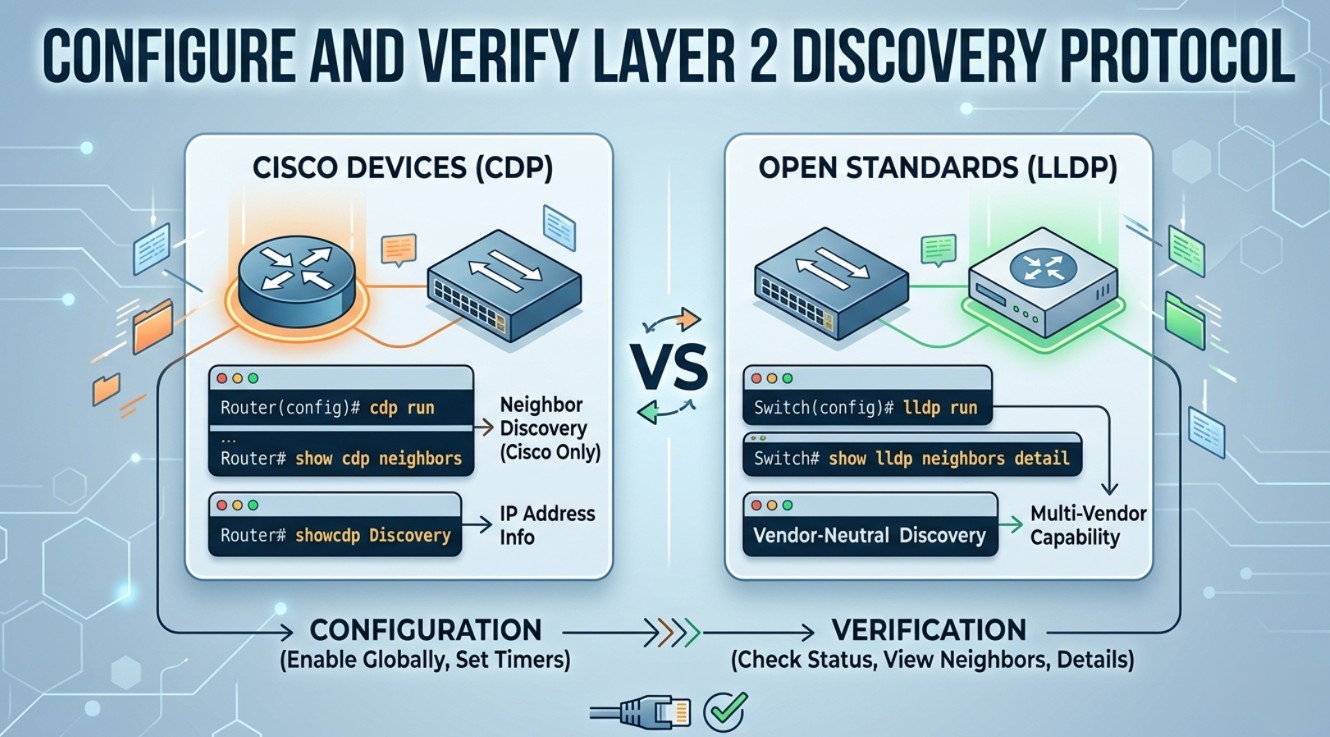
Although both protocols perform similar tasks, CDP is Cisco proprietary, while LLDP is an open industry-standard protocol supported by multiple vendors.
Cisco Discovery Protocol (CDP)
Cisco Discovery Protocol (CDP) is a Cisco proprietary Layer 2 protocol used to discover directly connected Cisco devices. CDP runs automatically on most Cisco routers, switches, and wireless devices. It allows devices to share information with neighboring Cisco devices regardless of the configured network layer protocols.
CDP is extremely useful in Cisco environments because it helps administrators identify neighboring devices quickly without manually tracing cables. By using CDP commands, administrators can determine:
- Which device is connected
- Which local interface is used
- Which remote interface is connected
- Neighbor IP addresses
- Device platform and IOS version
CDP messages are sent periodically to a multicast MAC address and are not forwarded beyond directly connected devices.
Features of CDP
Some important features of Cisco Discovery Protocol (CDP) are:
- CDP operates at the Data Link Layer (Layer 2) of the OSI model.
- It is a Cisco proprietary protocol designed for Cisco devices.
- CDP is enabled by default on most Cisco routers and switches.
- It helps discover directly connected Cisco neighbor devices automatically.
- CDP does not require IP connectivity to exchange information.
- The protocol provides details such as device name, interface information, IP address, and platform type.
- CDP helps administrators troubleshoot connectivity problems quickly.
- It is useful for network monitoring, maintenance, and documentation purposes.
How CDP Works
When CDP is enabled, Cisco devices periodically send advertisements containing information about themselves. Neighboring Cisco devices receive these advertisements and store the information in a CDP neighbor table.
For example:
- Switch1 connected to Router1
- Router1 advertises its hostname, IP address, and interface details
- Switch1 stores the information and displays it using CDP commands
This allows administrators to quickly identify connected devices.
Important CPD commands for configuration, verification, and troubleshooting.
1. Enabling and Disabling CDP
CDP is usually enabled globally by default on Cisco devices. However, you can turn it off globally for security reasons or disable it on specific interfaces (like those facing the public internet or end-user devices).
Global Commands
- Enable CDP globally:
Router(config)# cdp run - Disable CDP globally:
Router(config)# no cdp run
Interface-Specific Commands
- Disable CDP on a specific interface:
Router(config-if)# no cdp enable - Re-enable CDP on a specific interface:
Router(config-if)# cdp enable
2. Verification and Status Commands
These commands are used in Privileged EXEC mode (#) to check if CDP is running and to view general timers.
- Check global CDP status: Shows the update packet timer (default 60 seconds) and hold time (default 180 seconds).
Router# show cdp
- Check CDP status on interfaces: Shows which interfaces have CDP actively enabled, encapsulation type, and timers.
Router# show cdp interface
3. Discovering Neighbor Devices
These are the most frequently used commands for mapping out a network topology.
- View a summary of all connected neighbors: This is the go-to command. It shows the Neighbor ID, local interface, hold time, capability (Router, Switch, etc.), platform, and remote port ID.
Router# show cdp neighbors
- View detailed information about neighbors: Provides deep insights, including the IP address of the neighbor, IOS software version, duplex settings, and native VLAN.
Router# show cdp neighbors detail(Note:show cdp entry *Accomplishes the exact same thing).
- View details for one specific neighbor: If you only want information on a specific connected device (e.g., a switch named “SW-Floor2”).
Router# show cdp entry SW-Floor2
4. Troubleshooting and Maintenance
If you are modifying your network layout or troubleshooting connectivity issues, use these commands to clear outdated data or monitor traffic.
- Clear the CDP cache: Flushes the current table of neighbors. Useful if you’ve unplugged cables and want to force the device to rebuild its neighbor list immediately.
Router# clear cdp table
- Reset CDP counters: Resets the statistics for traffic sent and received back to zero.
Router# clear cdp counters
- View CDP traffic statistics: Shows how many CDP packets have been sent, received, or dropped due to errors.
Router# show cdp traffic
Quick Summary
| Command | Mode | What it does |
cdp run | Global Config | Turns on CDP for the entire device. |
no cdp enable | Interface Config | Turns off CDP for that specific port. |
show cdp neighbors | Privileged EXEC | Lists basic info about directly connected Cisco devices. |
show cdp neighbors detail | Privileged EXEC | Lists IP addresses and OS versions of connected devices. |
clear cdp table | Privileged EXEC | Wipes the neighbor list to force a fresh rediscovery. |
⚠️ Security Note: Because CDP transmits unencrypted, detailed device information (including IP addresses and hardware models), it is best practice to run
no cdp enableon all untrusted, user-facing, or external perimeter interfaces to prevent reconnaissance attacks.
Link Layer Discovery Protocol (LLDP)
Link Layer Discovery Protocol (LLDP) is an open-standard Layer 2 discovery protocol defined by IEEE 802.1AB. Unlike CDP, LLDP is vendor-neutral and supported by many networking vendors such as Cisco, Juniper, HP, Aruba, Huawei, and others.
LLDP performs functions similar to CDP by allowing devices to advertise and discover neighbor information. Because LLDP is standards-based, it is commonly used in multi-vendor network environments.
LLDP helps administrators identify:
- Neighbor devices
- Port connections
- Device capabilities
- System names
- Management addresses
Like CDP, LLDP operates only between directly connected devices.
Features of LLDP
Important features of LLDP include:
- IEEE standard protocol
- Vendor-neutral
- Operates at Layer 2
- Supports multi-vendor environments
- Advertises device information
- Useful for network discovery and troubleshooting
How LLDP Works
LLDP-enabled devices periodically send LLDP advertisements to neighboring devices. These advertisements contain system information such as hostname, interface information, capabilities, and management addresses.
Neighboring devices receive and store this information in an LLDP neighbor table. Administrators can then display the information using verification commands.
LLDP commands for configuration, verification, and network discovery.
1. Enabling and Disabling LLDP
Unlike CDP, which is often enabled by default on Cisco devices, LLDP is usually disabled globally by default on Cisco iOS. Another key difference is that LLDP allows you to control transmission (transmit) and reception (receive) independently on individual ports.
Global Commands
- Enable LLDP globally:
Router(config)# lldp run - Disable LLDP globally:
Router(config)# no lldp run
Interface-Specific Commands
On a per-port basis, you can choose to only send LLDP packets, only receive them, or turn them off completely.
- Disable LLDP completely on an interface:
Switch(config-if)# no lldp transmitSwitch(config-if)# no lldp receive
2. Verification and Status Commands
Run these commands in Privileged EXEC mode (#) to check LLDP’s operational status and timers.
- Check global LLDP status: Shows the update packet timer (default 60 seconds) and hold time (default 180 seconds).
Router# show lldp
- Check LLDP status on interfaces: Shows which interfaces are actively transmitting or receiving LLDP packets.
Router# show lldp interface
3. Discovering Neighbor Devices
These commands mirror the functionality of CDP commands but pull data from your non-Cisco and Cisco neighbors alike.
- View a summary of all connected neighbors: This gives you a quick snapshot of the local port, neighbor device ID, neighbor’s port ID, capability, and hold time.
Router# show lldp neighbors
- View detailed information about neighbors: Provides the IP management address of the neighbor, system description (vendor name, operating system version), and specific capabilities.
Router# show lldp neighbors detail(Note:show lldp entry *Accomplishes the exact same thing).
- View details for one specific neighbor: Filters the detailed view to a single device name (e.g., an HP switch named “HP-Core-01”).
Router# show cdp entry SW-Floor2
4. Troubleshooting and Maintenance
If you are modifying your network layout or troubleshooting connectivity issues, use these commands to clear outdated data or monitor traffic.
- Clear the CDP cache: Flushes the current table of neighbors. Useful if you’ve unplugged cables and want to force the device to rebuild its neighbor list immediately.
Router# clear lldp table
- Reset CDP counters: Resets the statistics for traffic sent and received back to zero.
Router# clear lldp counters
- View CDP traffic statistics: Displays global counters for LLDP frames sent, received, discarded, or dropped due to errors.
Router# show lldp traffic
Quick Summary
| Command | Mode | What it does |
lldp run | Global Config | Turns on LLDP globally for the entire device. |
no lldp transmit | Interface Config | Stops the interface from broadcasting its own info. |
no lldp receive | Interface Config | Stops the interface from listening to incoming LLDP info. |
show lldp neighbors | Privileged EXEC | Lists basic info about all connected vendor devices. |
show lldp neighbors detail | Privileged EXEC | Lists IP addresses, vendor info, and firmware of neighbors. |
clear lldp table | Privileged EXEC | Wipes the neighbor list to force a fresh rediscovery. |
💡 Tech Tip (LLDP-MED): If you are configuring VoIP (Voice over IP) environments with third-party phones (like Avaya or Polycom), you will often see LLDP-MED (Media Endpoint Discovery) used. It runs automatically on top of LLDP to push voice VLANs, power configurations (PoE), and QoS policies directly to the phones.
Conclusion
Layer 2 discovery protocols play a critical role in network management and troubleshooting. Cisco Discovery Protocol (CDP) allows Cisco devices to discover neighboring Cisco devices automatically, while Link Layer Discovery Protocol (LLDP) provides similar functionality in multi-vendor environments using an open IEEE standard.
By configuring and verifying CDP and LLDP, network administrators can quickly identify connected devices, verify physical connectivity, simplify troubleshooting, and improve overall network visibility.